
Social Planner
Approving Posts
Post Approval Flow in Social Planner
Social Planner now has post approval flow where the user can get the content of social post reviewed and analyzed by another team member.
Steps to get started with post approval flow
Navigate to Marketing> Social Planner. Create New Post by clicking the "New Post" button.
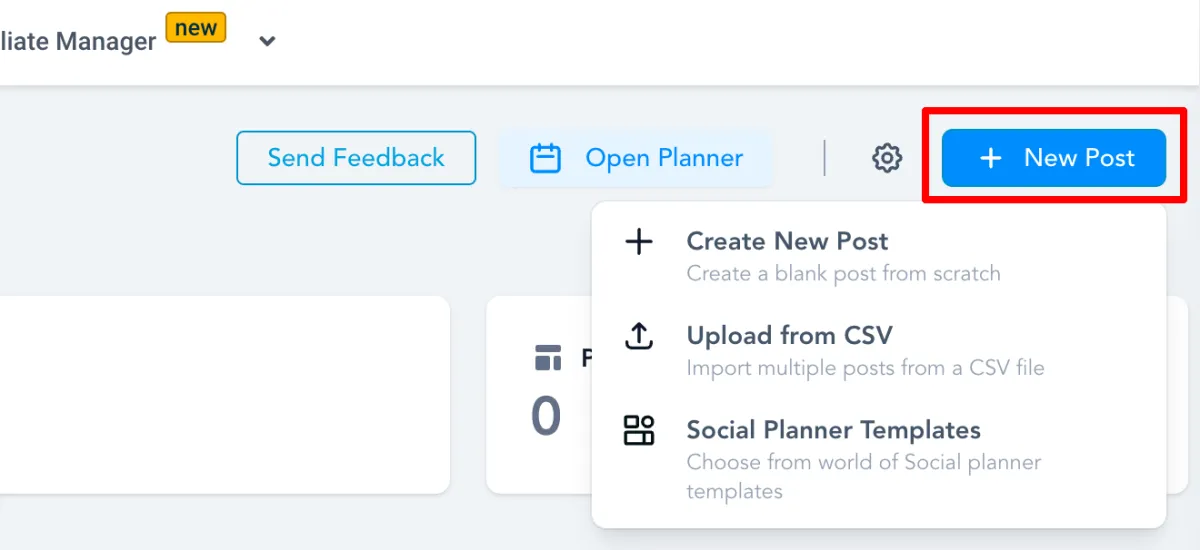
Once the post is created with content, rich media, hashtags and more, it can be "Scheduled for Approval"
Add the date and time for schedule
Choose the user who would approve the post to be schedule in social calendar
Add an internal note for the approval for more information
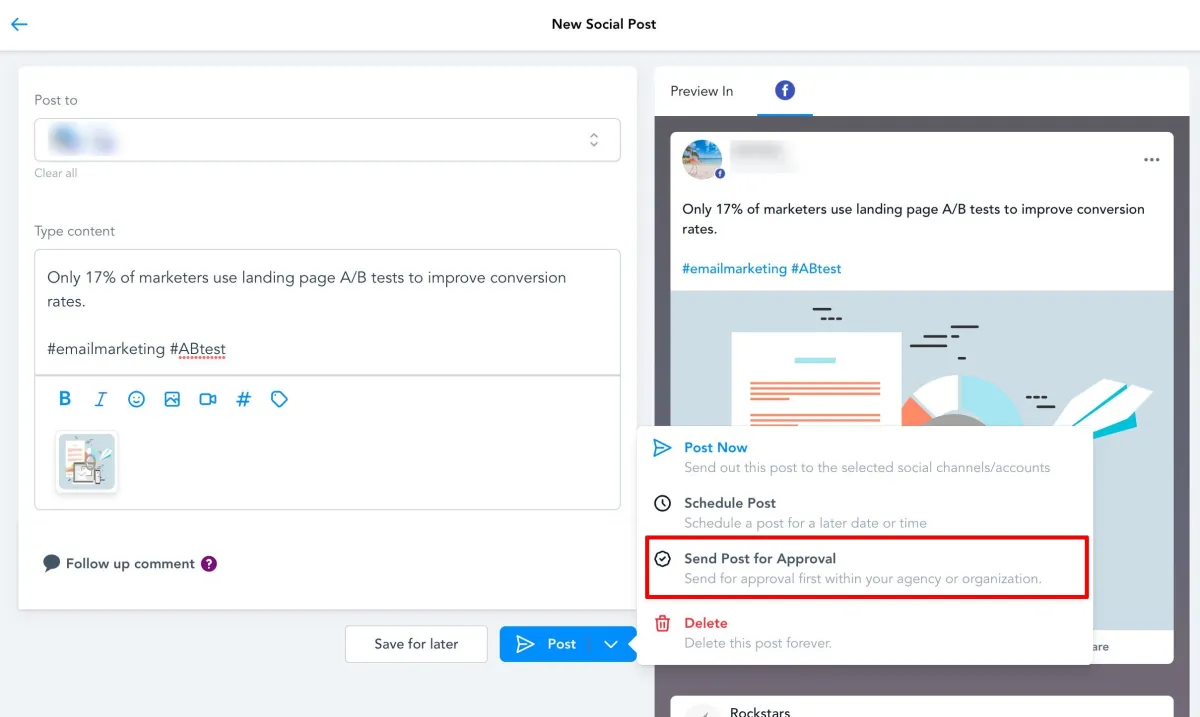
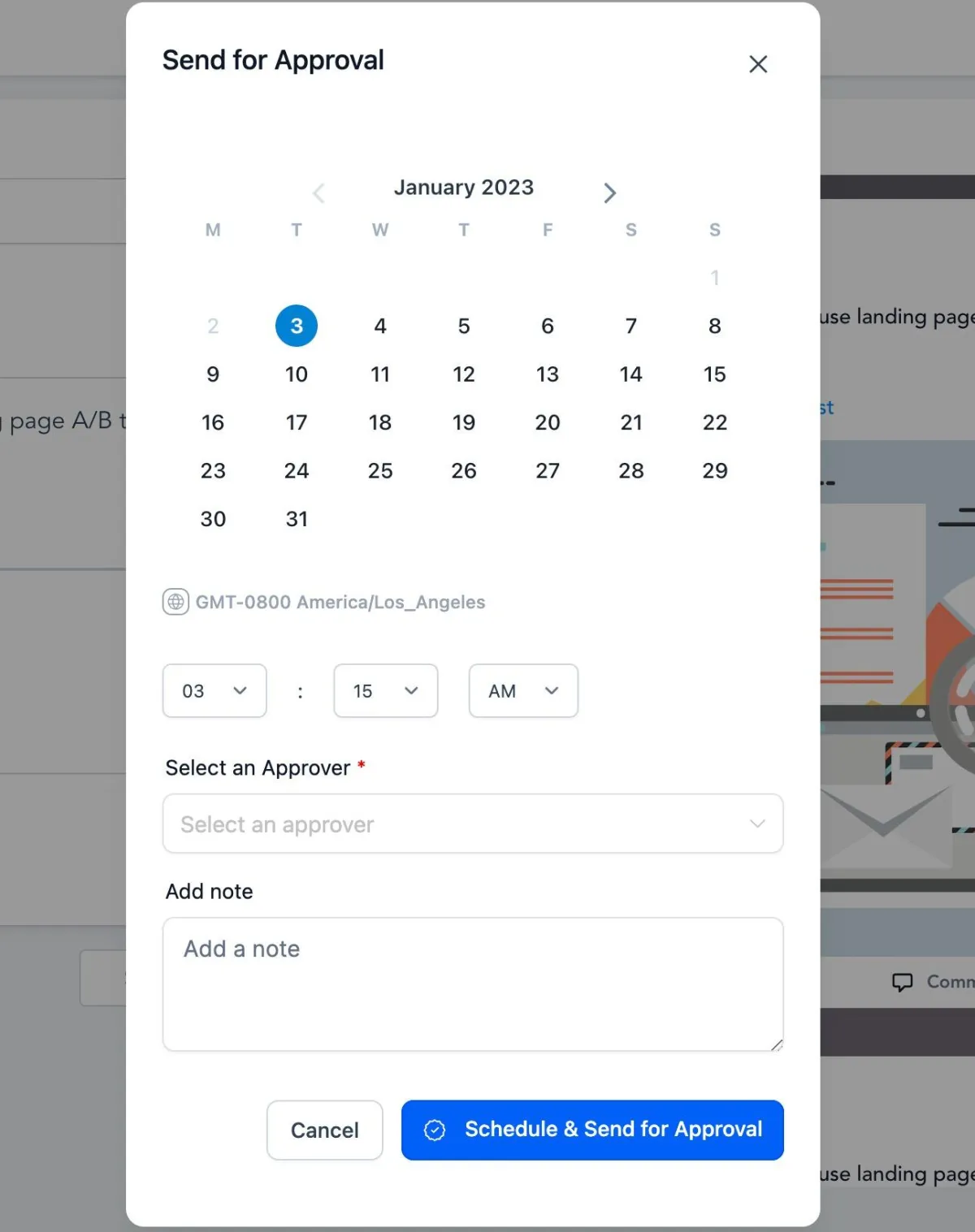
3. Once the post is sent for review, an email will be delivered for the scheduled post.
4. The reviewer can see the post in "Approval" tab with the option to view, approve or reject. The view option will allow user to view the details of post than approve or reject. The reviewer team member can edit the content too for approval flow by clicking "Edit" in view screen.
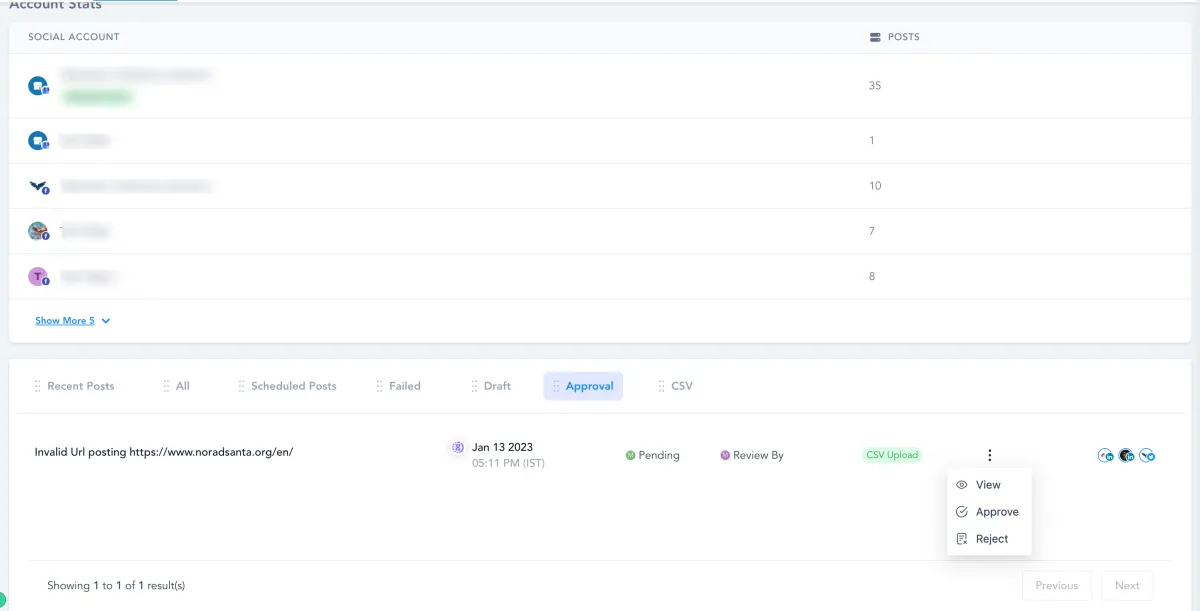
5. Once the post is approved, it will be scheduled in the social calendar. If the post is rejected, the user can view the comment sent by the reviewer.
Editing and applying an Email Template as the Post Approval Email:
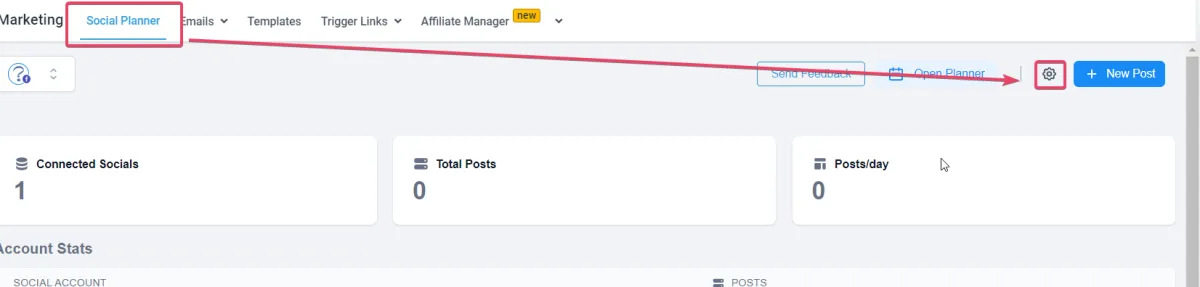
Users can set the email for approval from Social Planner Settings.
Click on the wheel cog icon on the upper right hand corner of the Social Planner page.
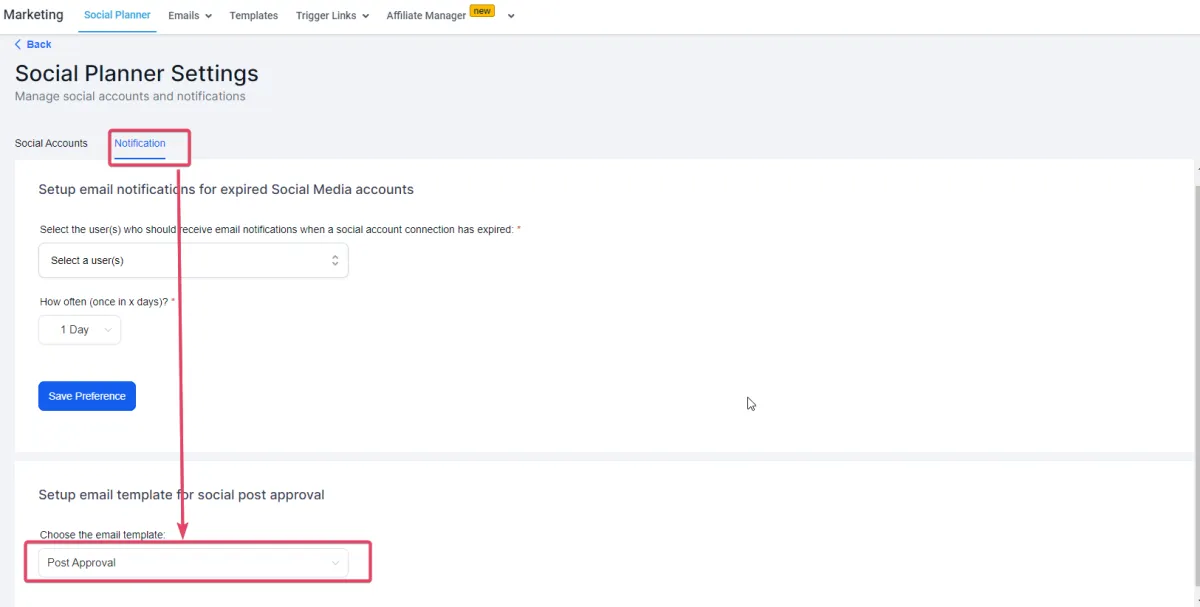
Click on Notifications.
Choose the email template Notification: Admin: Social Post Approval under Setup Email template for Social Post Approval
How to schedule the CSV for Approving bulk posts?
Create a new CSV when you click "New Post" button
Once the user adds the CSV file and Select the Socials, there will be option to Select an Approver.
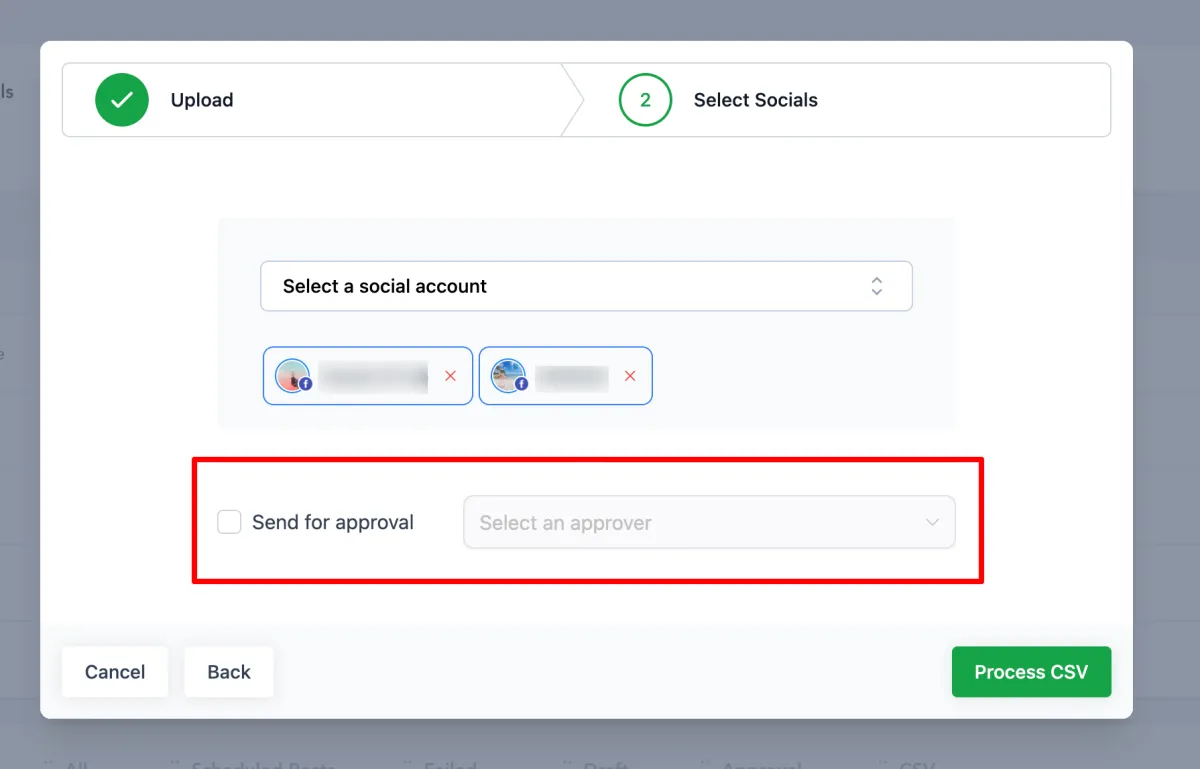
Once the posts are imported, they go for review from the chosen approver. Once approved, they are scheduled on the social calendar.
support@help.crewrm.io
1-866-205-8488
Need additional support? Feel free to reach out and get expert help!
COPYRIGHT 2023